
How to Sign in with Multi-Factor Authentication (MFA)
Multi-Factor Authentication adds an extra layer of security to your account. Follow the below steps to login to your account with MFA.
Note: MFA is not enabled by default. Contact our support team if you’d like MFA set up for your team.
-
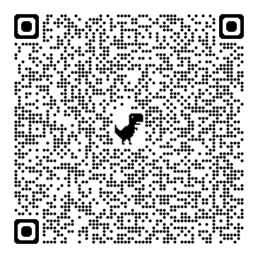
To access your MFA Login Page, Click Here or scan the barcode below.
-
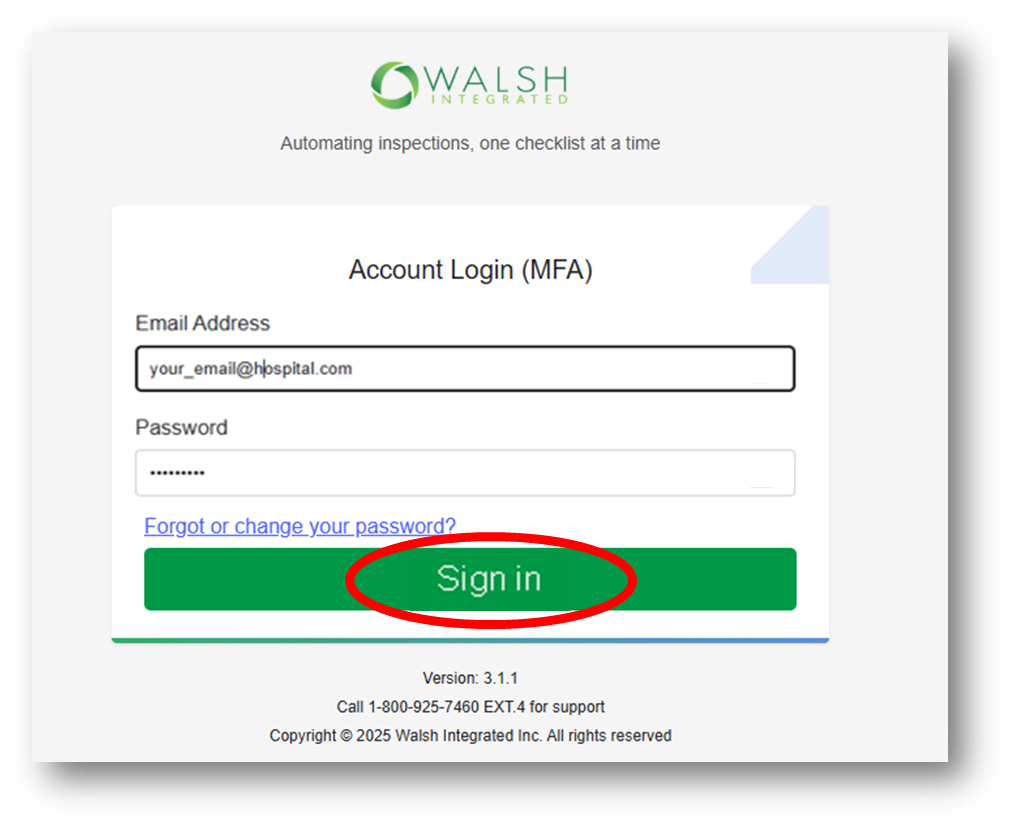
Enter your username (email address) and password, and then click Sign in.
-
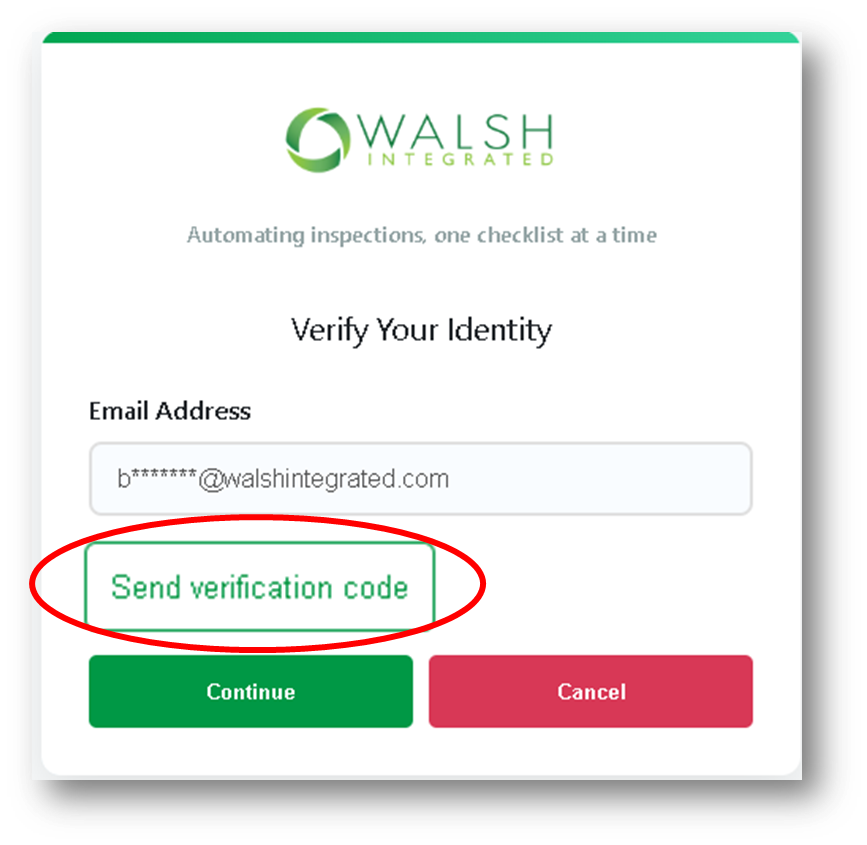
Click on Send verification code.
-
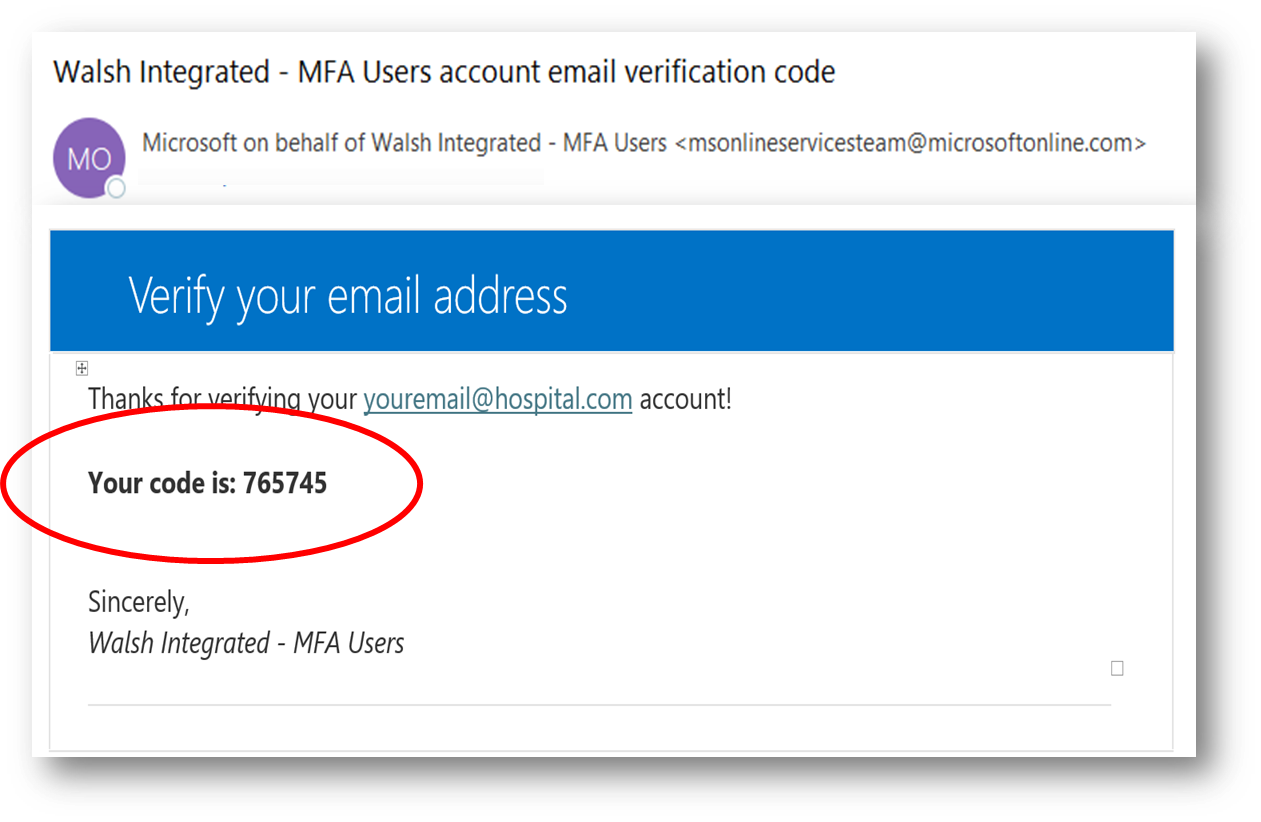
Check your email for the code; you will receive it immediately.
-
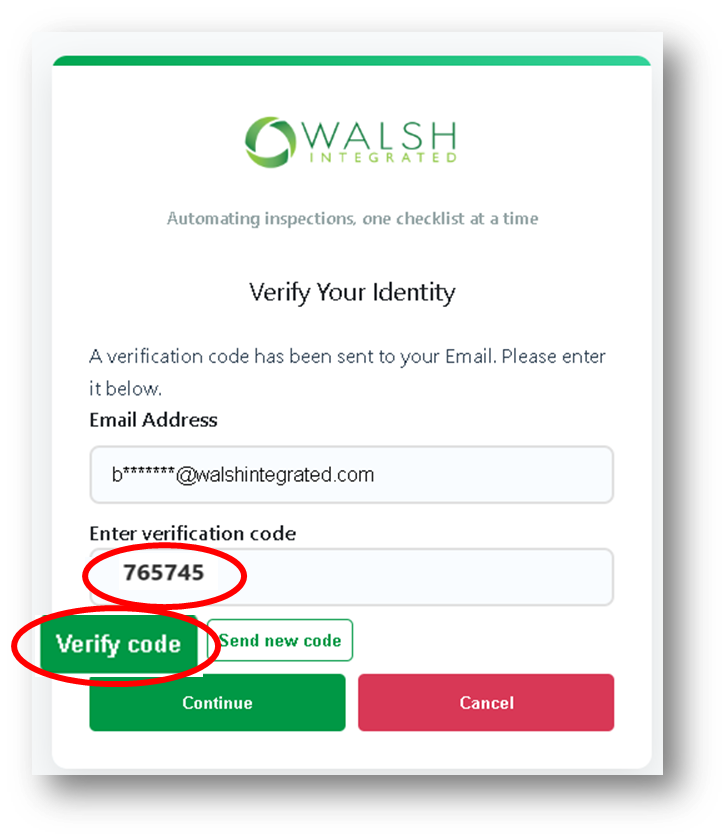
Enter your code and then click on Verify code.
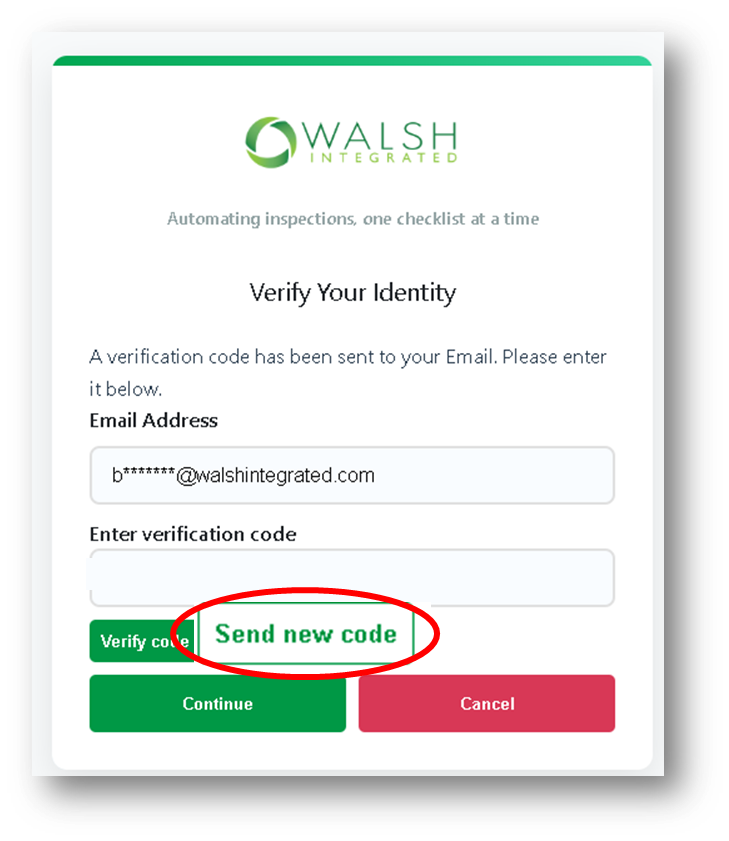
If the code doesn’t arrive or expires, click Send new code to request a new one.
-
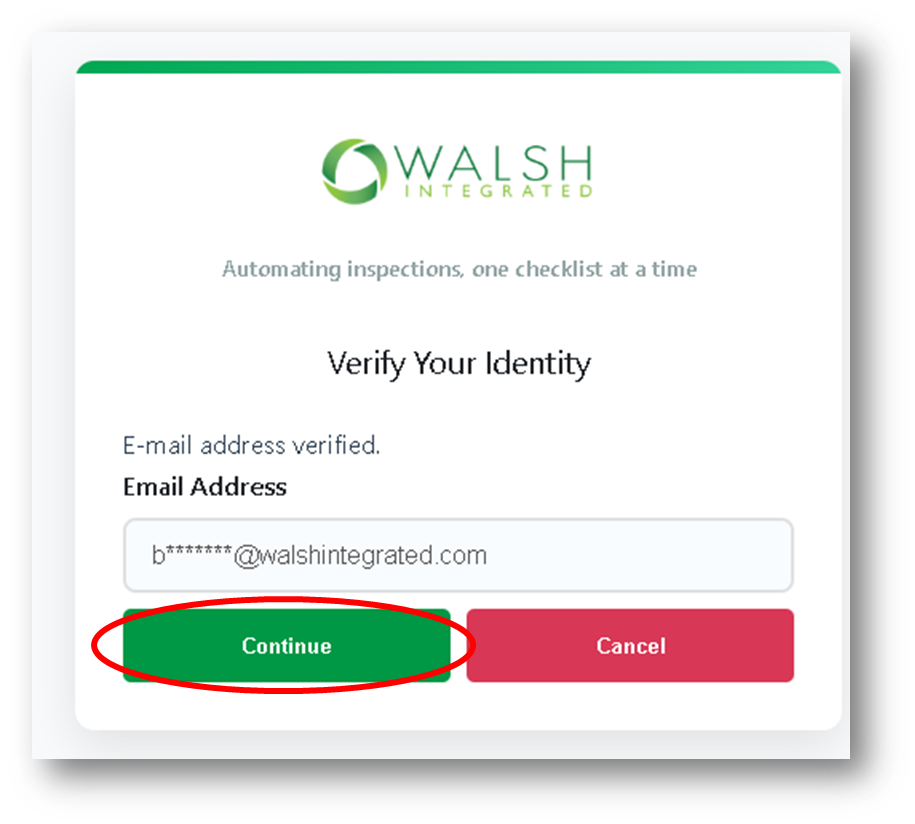
Once your email is verified, click the Continue button to finish signing in.
Summary
Multi-Factor Authentication adds an extra layer of security to your account by sending a code to your email address to verify your identity. Enter the code to complete sign-in. If MFA isn’t set up yet, contact support to enable it for your account.